

In today’s tech-savvy world, a reliable wireless network is as essential as coffee on Monday morning. Whether it’s streaming your favorite series, video chatting with friends, or trying to figure out how to fix the printer that only works when it feels like it, a solid Wi-Fi connection can make or break your day.
Understanding Wireless Networks
Understanding wireless networks involves grasping how they function and their various types. A wireless network allows devices to connect to the internet or communicate with one another without physical cables.
What Is a Wireless Network?
A wireless network consists of connected devices that communicate via radio waves. These networks enable users to access the internet from different locations without a wired connection. Home routers transmit signals, allowing smartphones, laptops, and tablets to connect seamlessly. With advancements in technology, modern wireless networks provide fast and reliable connections essential for activities like streaming and online gaming.
Types of Wireless Networks
Wireless networks come in several types, each serving specific purposes. WLAN, or Wireless Local Area Network, covers limited areas like homes and offices. Another type is WAN, or Wireless Wide Area Network, which connects devices over larger geographical areas. WPAN, or Wireless Personal Area Network, facilitates communication between devices in close proximity, such as Bluetooth connections. These diverse wireless networks cater to the varying needs of users and environments, enhancing connectivity and convenience.
Preparing for Setup
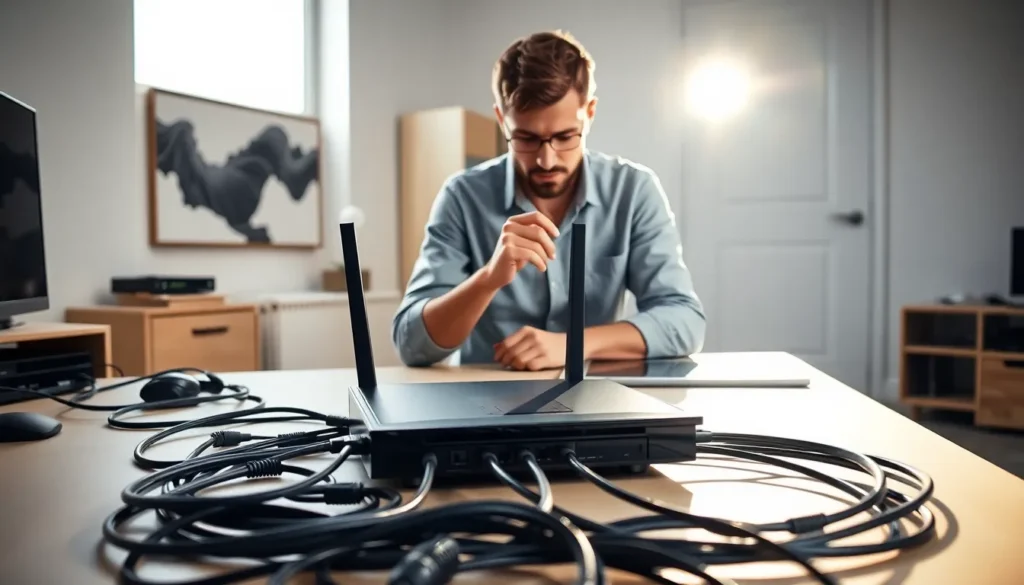
Preparing for a wireless network setup involves gathering necessary equipment and assessing the layout of the space. These initial steps lay the foundation for a successful installation.
Necessary Equipment
Essential items for setting up a wireless network include a wireless router, modem, and Ethernet cables. A modem connects to the internet service provider, while a router distributes the internet signal to devices. Ethernet cables facilitate wired connections for devices that require stable connections, such as gaming consoles or desktop computers. Some setups may also need Wi-Fi extenders to boost signal strength in larger areas. Adapters or network cards can help devices connect wirelessly if they’re not equipped for it. Ensure that all equipment is compatible with the internet service plan.
Assessing Your Space
Evaluating the area for the wireless network aids in achieving optimal coverage. Identify locations for the modem and router, ideally in central spots away from walls or obstructions. Consider placing the router on a shelf or high surface to enhance signal reach. Avoid placing routers near appliances that emit interference, such as microwaves or cordless phones. Mapping out the intended coverage helps identify potential dead zones within the space. This proactive approach ensures strong connectivity throughout the environment, supporting all devices effectively.
Step-by-Step Guide to Setup Wireless Network
Setting up a wireless network involves several key steps that ensure optimal performance and connectivity.
Positioning the Router
Positioning the router correctly influences signal strength. Central placement reduces dead zones and enhances coverage. Avoid placing the router near metal objects or appliances that may cause interference. Elevating the router can further improve signal distribution. Adjusting the orientation of antennas, if present, fine-tunes the reach of the network. Keep in mind that obstacles like walls and furniture can hinder the signal, so select a location that offers a clear line of sight to connected devices.
Connecting to Power and Internet
Connecting to power is straightforward. Plug the router into an electrical outlet using the included power adapter. Next, connect the modem to the router via an Ethernet cable. That cable should go into the WAN or Internet port on the router. Check the modem’s status lights to ensure an internet connection is active. If the connection is functional, the router can now distribute that internet signal wirelessly to devices throughout the home or office.
Configuring the Network Settings
Configuring network settings requires logging into the router’s web interface. Enter the router’s IP address in a web browser to access the configuration page. Users typically find this information on a sticker on the router or in the user manual. Once logged in, change the default SSID (network name) and set a strong password for security. Adjust other settings, such as network type and security protocols, to enhance stability and performance. Save these changes and reboot the router, ensuring the settings take effect for secure connectivity.
Securing Your Wireless Network
Securing a wireless network protects sensitive information and enhances performance. By prioritizing security, users can prevent unauthorized access and ensure a safe online experience.
Importance of Network Security
Network security is crucial for safeguarding personal data and maintaining privacy. Data breaches can lead to identity theft, financial loss, and compromised accounts. A secured wireless network limits access to only authorized devices, reducing risks. Every additional device connected increases vulnerability, making robust security even more essential. By implementing strong security measures, individuals can enjoy seamless connectivity without the fear of infiltration.
Best Practices for Securing Your Network
Implementing strong passwords serves as the first line of defense. Choose complex passwords that include letters, numbers, and symbols. Regularly updating these passwords keeps unauthorized users at bay. Additionally, enabling WPA3 encryption enhances security, ensuring that data transmitted over the network remains secure. Changing the default SSID also helps; a unique network name makes it harder for potential intruders to identify the router. Further, disabling WPS prevents unauthorized access attempts through vulnerable connections. Regularly updating router firmware addresses security flaws, providing continuous protection against evolving threats.
Troubleshooting Common Issues
Common issues can arise even in a well-set wireless network. Understanding how to tackle these problems enhances connectivity and performance.
Connectivity Problems
Connectivity problems often stem from incorrect configurations. Start by ensuring that the modem and router are properly connected. Checking the indicator lights on both devices provides insight; a steady green light indicates proper operation. Users should also verify that the wireless network is selected on their devices and that they entered the correct password. If the issue persists, restarting the router can help. Contacting the Internet Service Provider (ISP) may be necessary if disruptions continue, as outages may affect the connection.
Signal Strength Issues
Weak signal strength can hinder network performance. Positioning the router centrally within the space minimizes distance to connected devices. Metal objects and appliances can disrupt signals, so keeping the router away from these obstructions improves coverage. Users might also consider adjusting the router’s antennas or switching to a less congested Wi-Fi channel if interference occurs. Utilizing range extenders or mesh networks can expand coverage significantly in larger areas. Regularly updating router firmware addresses performance issues too, ensuring devices run optimally.
A well-setup wireless network is crucial for enjoying seamless internet connectivity in today’s digital age. By following best practices for installation and security, users can create a robust network that supports their devices effectively.
Taking the time to properly configure settings and secure the network not only enhances performance but also protects sensitive information from potential threats. With the right setup and proactive troubleshooting, anyone can ensure a reliable wireless experience that meets their needs. Embracing these strategies will lead to a more connected and convenient lifestyle.